BONGCHAN/Bong TerminalBong 터미널/User guide사용설명서

Bong Terminal터미널Live charts in your browser · how to use bongchan.com/chart웹에서 보는 실시간 차트 · bongchan.com/chart 쓰는 법

Charts, order books, trades, liquidations, news and the Hyperliquid liquidation map on one screen. It works much like TradingView, but it is lighter and faster. Most features are free without logging in; Bong Signal, Bong Zone and signal alerts are for members.차트·호가·체결·청산·뉴스·하이퍼리퀴드 청산 지도를 한 화면에서 봅니다. 쓰는 법은 트레이딩뷰와 거의 같고, 훨씬 가볍고 빠릅니다. 대부분의 기능은 로그인 없이 무료이고, Bong Signal·Bong Zone과 신호 알림만 멤버 전용입니다.

Nothing to install설치 없음Free without login로그인 없이 무료PC · MobilePC · 휴대폰Members: Bong indicators · alerts멤버: Bong 지표 · 알림
BONGCHAN TERMINALBONGCHAN.COM/CHARTLIVE
The Bong terminal: tabs at the top, the symbol bar, the toolbar, drawing tools on the left, a BTC futures chart in the middle, the list panel on the right and the icon bar at the far right
The first screen처음 여는 화면Chart in the middle · info panel on the right · icon bar at the far right가운데 차트 · 오른쪽 정보 창 · 맨 오른쪽 아이콘 막대
01

Getting started시작하기

The screen and logging in화면과 로그인

What is on the screen, how members log in, and using it on your phone.화면 구성, 멤버 로그인, 휴대폰에서 쓰는 법입니다.

Screen layout화면 구성

Open bongchan.com/chart in your browser and it is ready. There is nothing to install. If you have used TradingView, you already know most of it.브라우저에서 bongchan.com/chart를 열면 바로 씁니다. 설치할 것이 없고, 트레이딩뷰를 써 보셨다면 거의 같은 방법으로 쓰면 됩니다.

  1. Tabs위 탭Keep several symbols and timeframes open and switch with one click.여러 종목·시간봉을 열어 두고 눌러서 오갑니다.
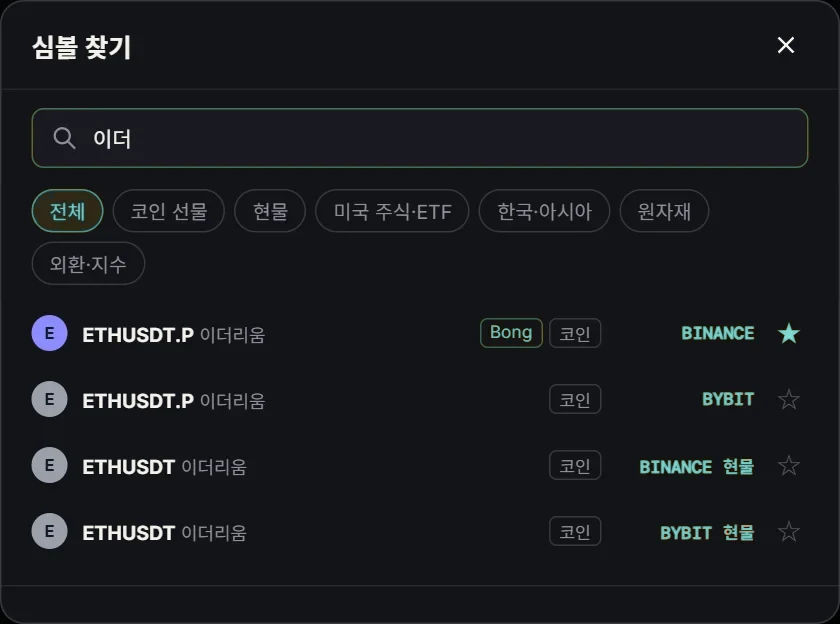
  2. Symbol bar종목 정보 줄Click the symbol name to search. Shows price, 24-hour range, volume, open interest and funding.종목 이름을 누르면 종목 찾기. 가격·24시간 범위·거래대금·미결제약정·펀딩을 보여 줍니다.
  3. Toolbar도구 막대Timeframe, chart type, indicators, replay, Bong Scout and Bong Radar on the left; split view, settings, share, screenshot and full screen on the right.왼쪽에 시간봉·차트 모양·지표·리플레이·Bong 스카우트·Bong 레이더, 오른쪽에 분할 보기·설정·공유·화면 찍기·전체 화면.
  4. Drawing bar왼쪽 작도 막대Trend lines, Fibonacci, shapes, text and other drawing tools.추세선·피보나치·도형·글자 같은 작도 도구.
  5. Chart차트Scroll to zoom, drag to move. Right-click for more options.휠로 확대·축소, 끌어서 이동. 오른쪽 단추를 누르면 메뉴가 나옵니다.
  6. Right panel오른쪽 창List, order book, trades, news and more. Drag its edge to change the width.리스트·호가·체결·뉴스 등. 경계를 끌어 너비를 바꿉니다.
  7. Icon bar맨 오른쪽 아이콘 막대Choose what the right panel shows: list, indicators, trades, order book, signals, liquidation alerts, pump alerts, news, market. Hover an icon to see its name.오른쪽 창에 띄울 것을 고릅니다: 리스트·지표·체결·호가·신호·청산 알림·급등락 알림·뉴스·시장. 마우스를 올리면 이름이 보입니다.
  8. Bottom bar아래 막대Date ranges (1D, 5D, 1M …), go to a date, and the % · log · auto scale switches.1일·5일·1개월 같은 기간, 날짜로 이동, % · log · 자동 눈금.
Member login멤버 로그인

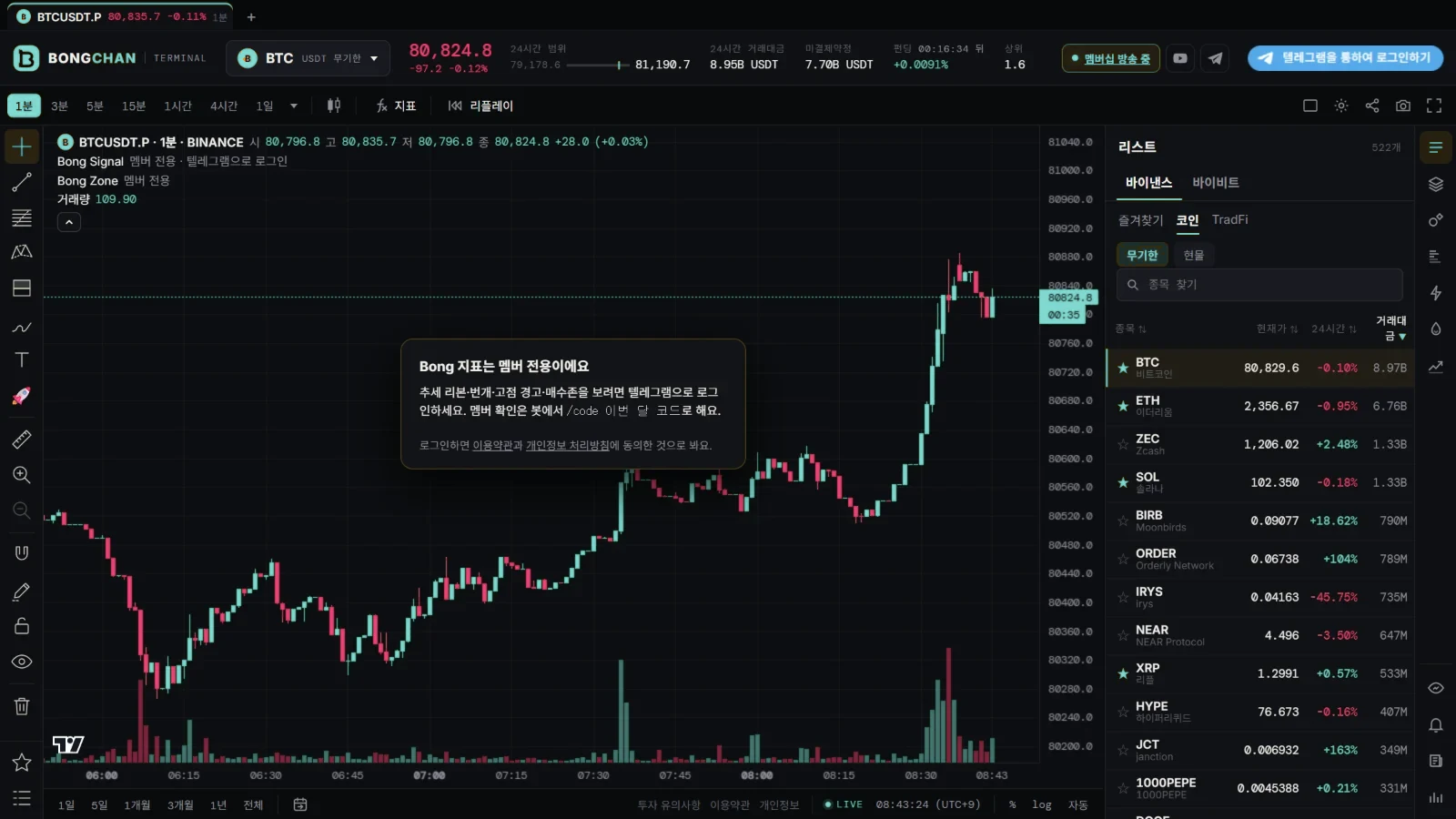
Bong Signal, Bong Zone and signal alerts are for members. Charts, order books, trades, liquidations and news work without logging in.Bong Signal·Bong Zone·신호 알림은 멤버 전용입니다. 차트·호가·체결·청산·뉴스는 로그인하지 않아도 그대로 씁니다.

  1. Send /code followed by this month’s code to the Telegram bot @bongfunbot.텔레그램 봇 @bongfunbot에 /code 이번 달 코드를 보냅니다.
  2. In the terminal, click 텔레그램을 통하여 로그인하기 (Log in with Telegram) at the top right.터미널 오른쪽 위 텔레그램을 통하여 로그인하기를 누릅니다.
  3. Optional: switch on the ☁ button at the top right to save your chart setup to your account. Once it is saved, any other device or browser loads the same setup as soon as you log in there.원하면 오른쪽 위 ☁ 단추를 켭니다. 차트 설정이 계정에 저장되어, 다른 기기·브라우저에서는 로그인만 하면 똑같은 설정을 바로 불러옵니다.

This is separate from TradingView indicator access, so people who already use the indicators also need to do the bot step once. This month’s code is in the members-only post on YouTube.트레이딩뷰 지표 신청과는 따로라서, 지표를 이미 쓰고 계신 분도 봇에서 한 번 해 주셔야 합니다. 이번 달 코드는 유튜브 멤버십 전용 게시물에 있습니다.

The terminal before login, with the Telegram login button at the top right
The login button is at the top right로그인 단추는 오른쪽 위에 있습니다

On your phone휴대폰

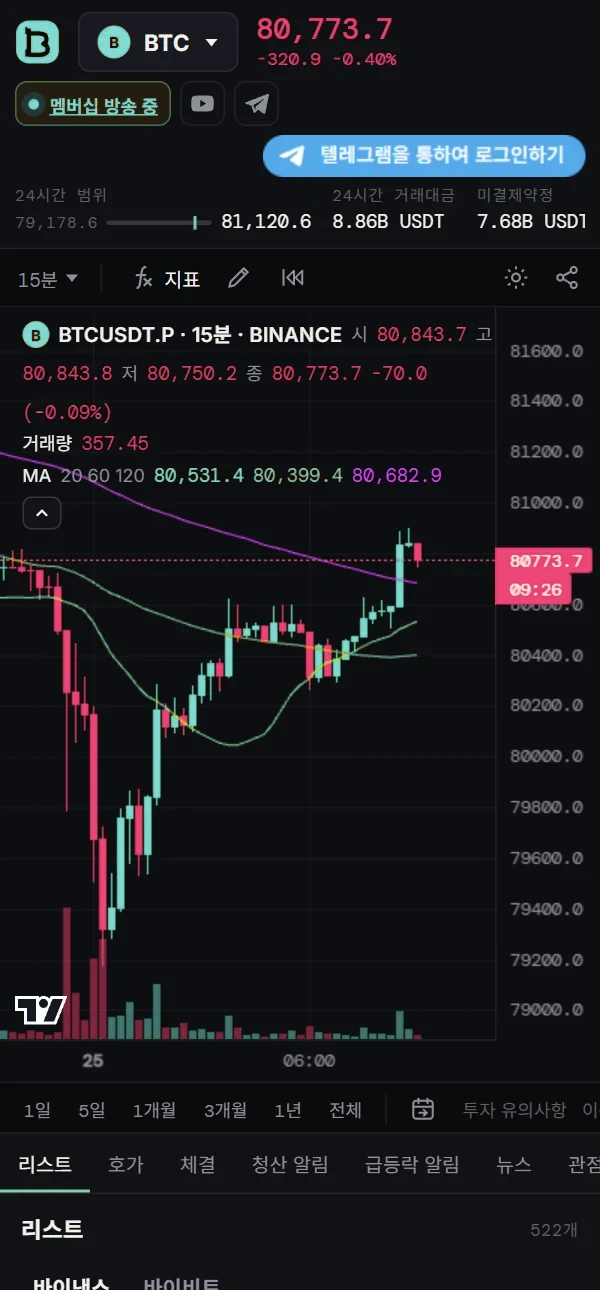
Open the same address on your phone. Swipe the tabs at the bottom sideways to see the list, order book, trades, liquidation alerts, pump alerts and news.휴대폰에서도 같은 주소로 열면 됩니다. 아래 탭을 옆으로 밀어서 리스트·호가·체결·청산 알림·급등락 알림·뉴스 창을 봅니다.

The terminal on a phone, with the chart on top and panel tabs below
02

Chart차트

Working with the chart차트 다루기

Tabs and split view, symbols, timeframes, indicators, drawing, replay and chart settings.탭·분할 보기, 종목, 시간봉, 지표, 작도, 리플레이, 차트 설정입니다.

Tabs · split view탭 · 차트 분할 보기

Click + at the top to open a new tab, as in a browser. Keep a different symbol and timeframe in each tab and click to switch.위쪽 +를 누르면 브라우저처럼 새 탭이 생깁니다. 종목·시간봉을 탭마다 따로 열어 두고 눌러서 오갑니다.

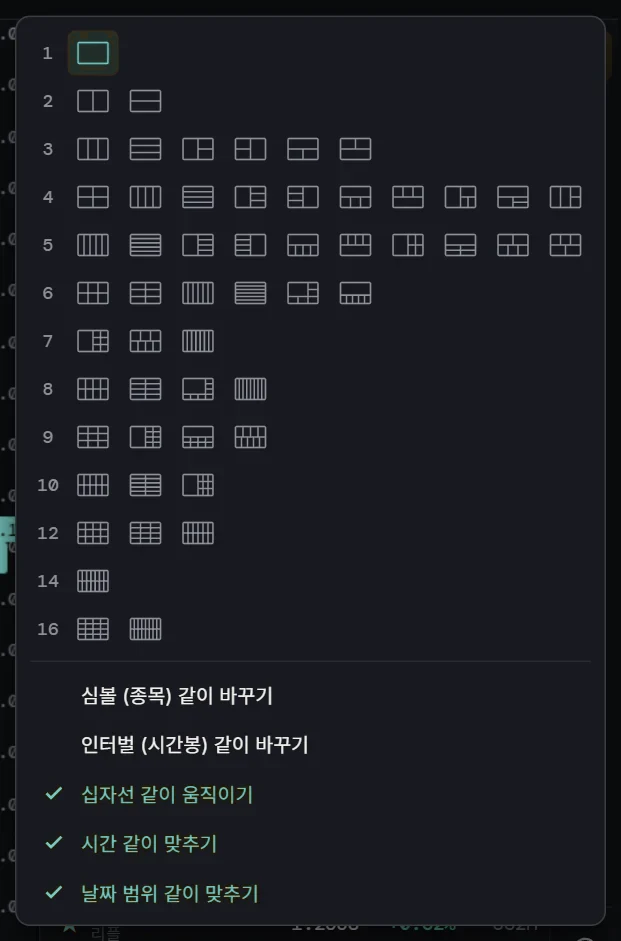
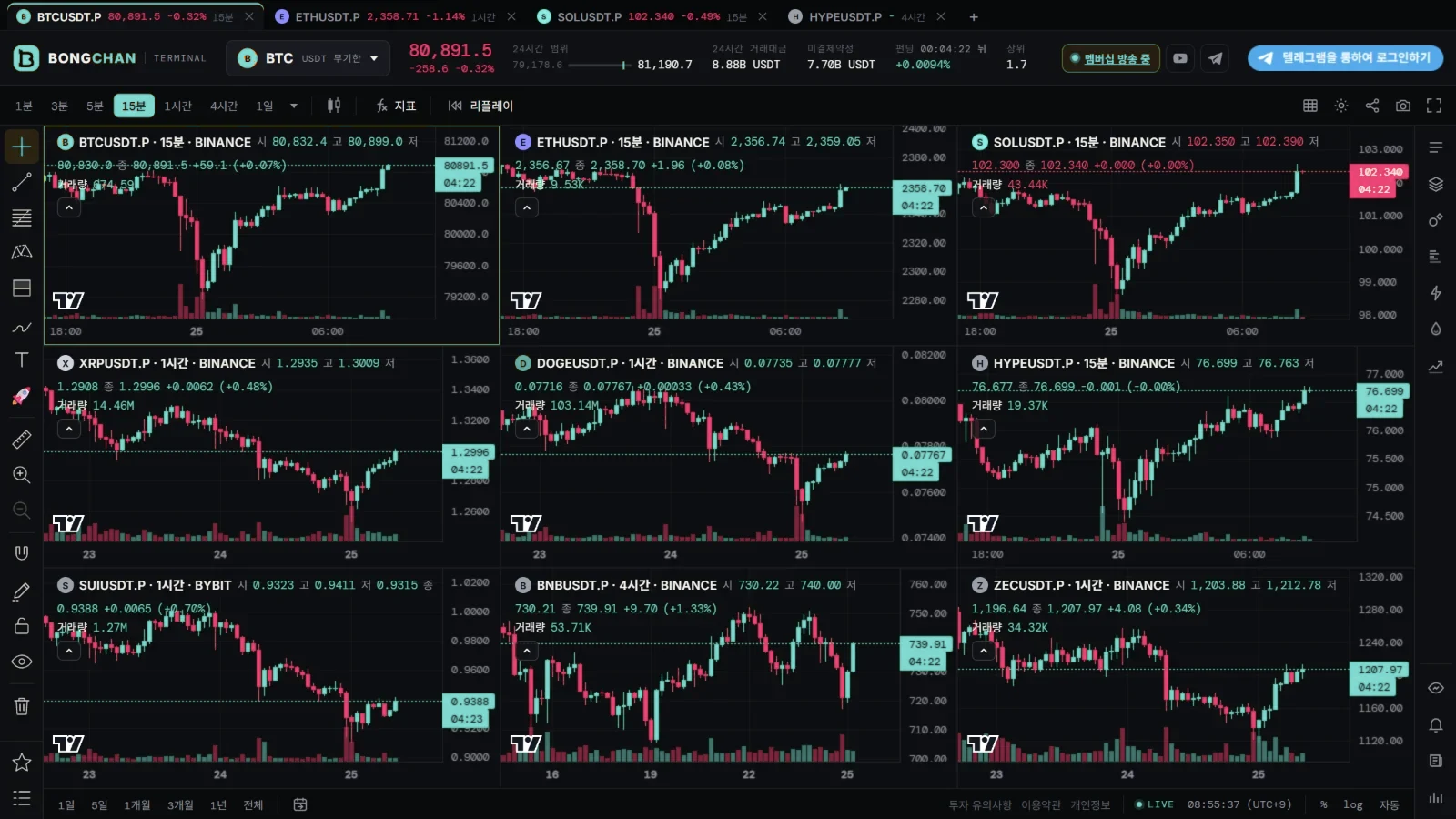
The square button at the top right splits the screen into as many as 16 charts — free for everyone. Drag the borders to resize, and Alt+click a chart to enlarge it. You can also choose whether the charts share the symbol, timeframe, crosshair and time.오른쪽 위 네모 단추를 누르면 한 화면에 차트를 최대 16개까지 나눠 볼 수 있습니다. 모두 무료입니다. 칸 경계를 끌어서 크기를 바꾸고, Alt+클릭으로 한 칸만 크게 봅니다. 종목·시간봉·십자선·시간을 각 칸 사이에서 동기화할지도 고를 수 있습니다.

The split view menu with layouts from 1 to 16 charts and sync options
Layouts and sync options배치와 같이 맞추기
Nine charts on one screen
Nine charts on one screen한 화면에 9칸

Timeframe · chart type시간봉 · 차트 모양

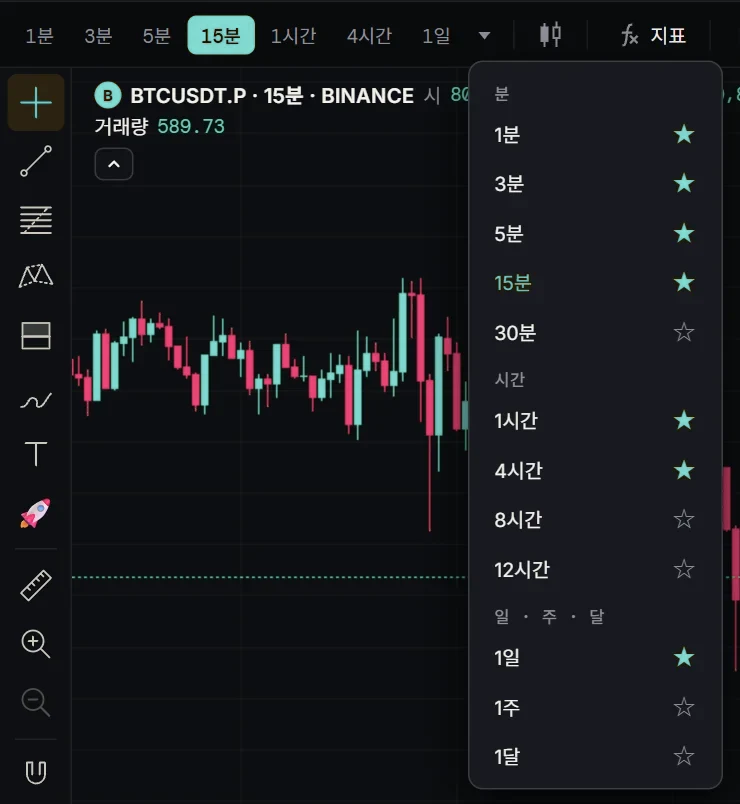
Pick a timeframe at the top. ▼ shows more, such as 30 minutes, 8 and 12 hours, weekly and monthly; click the star next to one to pin it to the toolbar.위쪽에서 시간봉을 고릅니다. ▼를 누르면 30분·8시간·12시간·주·달 같은 시간봉이 더 나오고, 별을 누르면 위 막대에 고정됩니다.

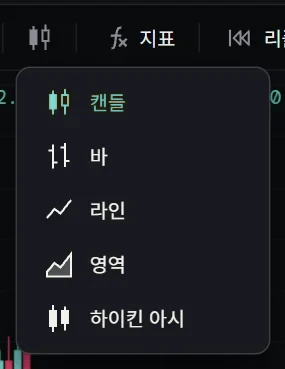
The candle button next to it switches the chart type: candles, bars, line, area or Heikin Ashi.옆 캔들 단추로 캔들·바·라인·영역·하이킨 아시 중에서 차트 모양을 바꿀 수 있습니다.

The timeframe menu with stars to pin timeframes
More timeframes · ★ to pin시간봉 더 보기 · ★ 고정
The chart type menu
Chart type차트 모양

Indicators지표

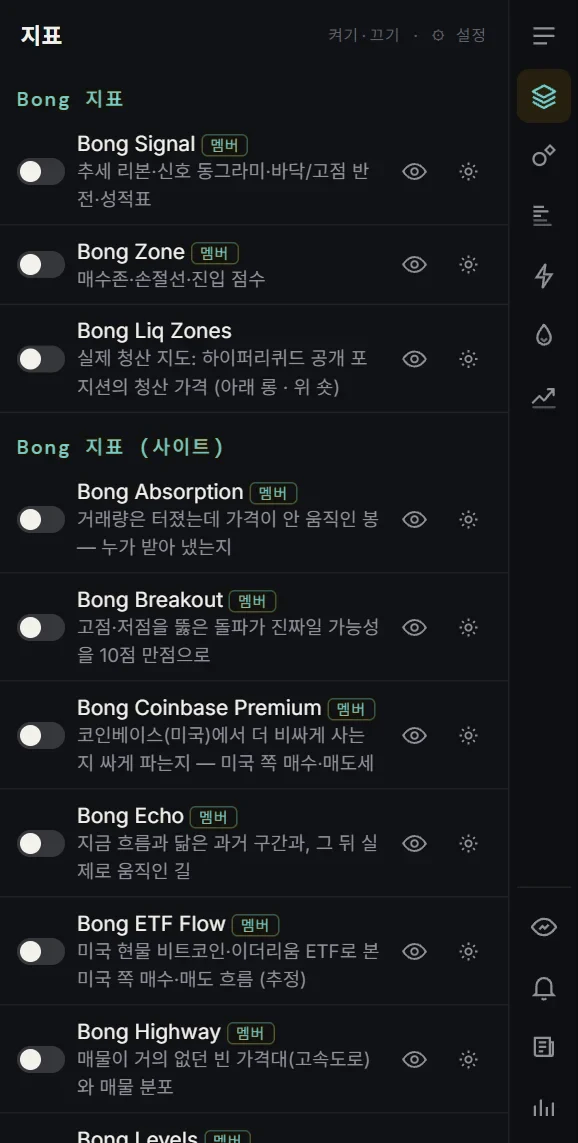
Click 지표 (Indicators) at the top to open the indicator panel. Just switch one on or off and it appears on the chart right away. Bong indicators (members) are switched on here too.위쪽 지표를 누르면 지표 창이 열립니다. 켜고 끄기만 하면 차트에 바로 나옵니다. Bong 지표(멤버 전용)도 이 창에서 켭니다.

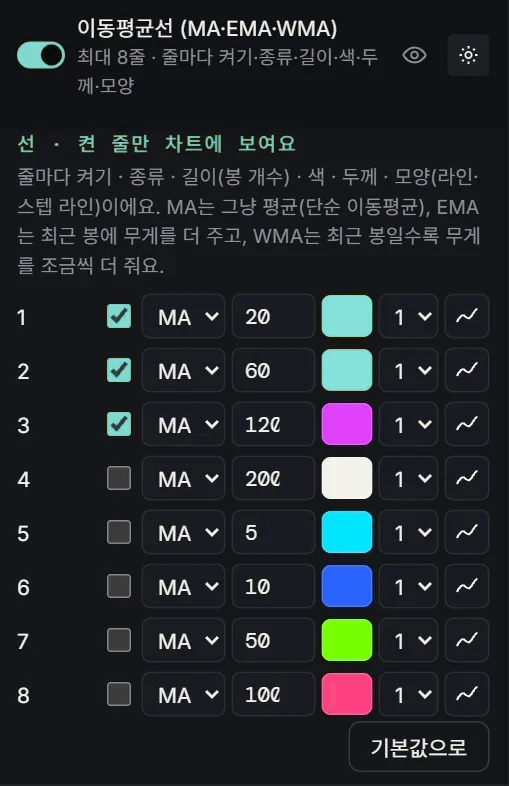
You can use up to 8 moving averages, each with its own type (MA, EMA, WMA), length, color, width and line style. In the legend at the top left of the chart, each indicator has buttons to hide it (👁), open its settings (⚙) or remove it (✕).이동평균선은 8줄까지 쓸 수 있고, 줄마다 종류(MA·EMA·WMA)·길이·색·두께·모양을 바꿀 수 있습니다. 차트 왼쪽 위 범례에서 지표마다 숨기기(👁)·설정(⚙)·빼기(✕) 단추를 누릅니다.

The indicator panel with switches
Indicator panel지표 창
Moving average settings with eight lines
Moving average settings이동평균 설정

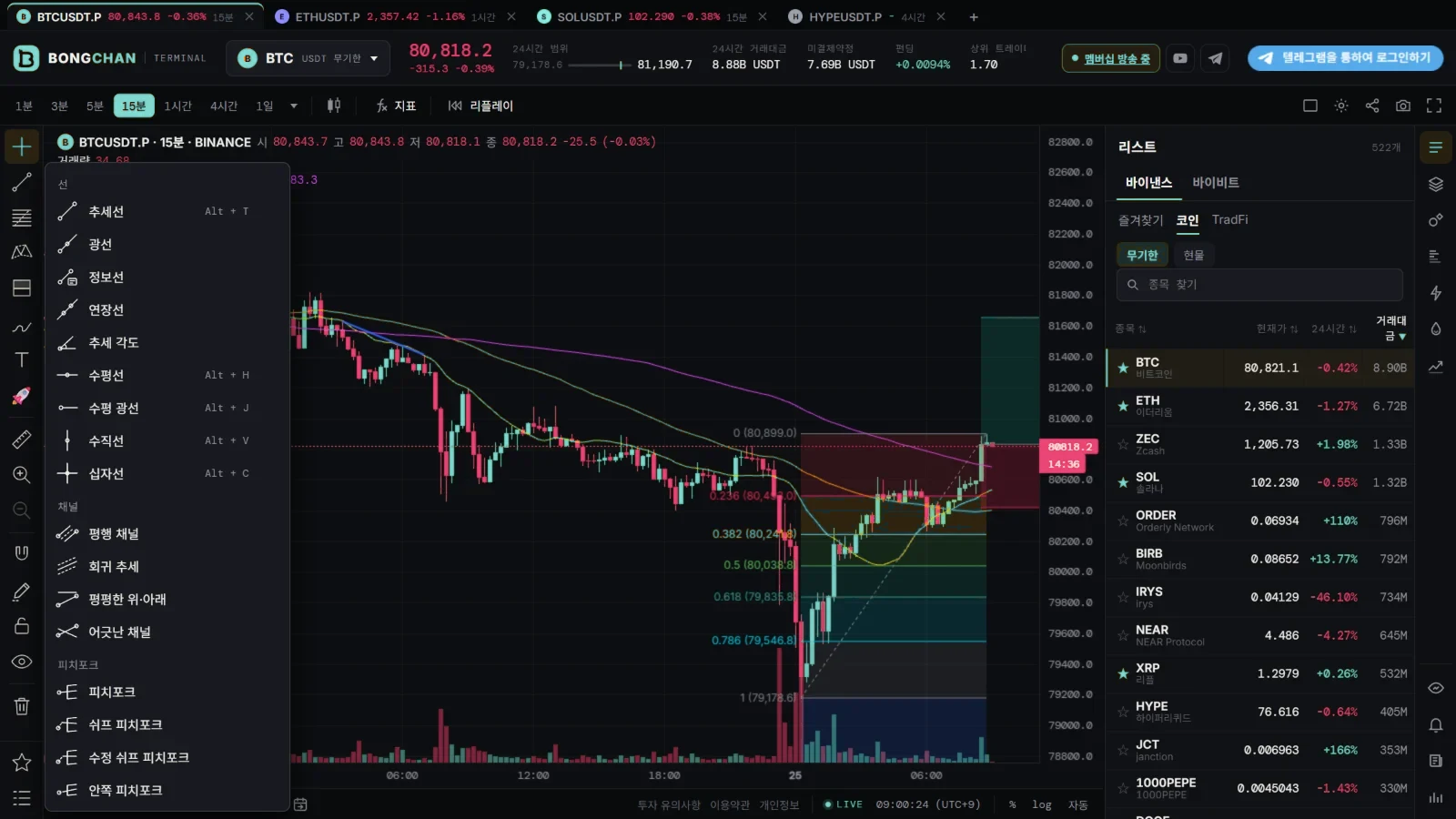
Drawing작도

The bar on the left has more than 70 drawing tools, the same as TradingView: trend lines, Fibonacci, long/short positions, shapes, text and more. The small arrow next to a tool opens its group, and the star adds a tool to your favorites bar.왼쪽 막대에 추세선·피보나치·롱/숏 포지션·도형·글자 등 트레이딩뷰와 같은 작도 도구가 70가지 넘게 있습니다. 도구 옆 작은 화살표를 누르면 같은 묶음 도구가 펼쳐지고, 별을 누르면 즐겨찾기 막대에 넣을 수 있습니다.

Drawings are saved for each chart tab and symbol — a line drawn in one tab does not show up in another tab, even on the same symbol. The share button at the top makes a link you can send to anyone — they see your chart exactly as you drew it. The link is live: when you add or move a drawing or change the chart, people who have it open see the change within a few seconds. Press 실시간 끄기 to freeze it as it is, or 고정 링크 따로 만들기 for a link that never changes.그린 작도는 맨 위 차트 탭마다, 종목마다 따로 저장됩니다. 같은 종목이라도 다른 탭에는 나오지 않습니다. 위쪽 공유 단추로 링크를 만들어 보내면, 받은 사람도 그린 그대로의 차트를 봅니다. 공유 링크는 실시간이라 작도를 더하거나 옮기고 차트를 바꾸면 링크를 열어 둔 사람 화면에도 몇 초 안에 바뀝니다. 지금 모습으로 멈추려면 실시간 끄기, 바뀌지 않는 링크가 필요하면 고정 링크 따로 만들기를 누릅니다.

Drawing tools on the left with a tool group opened
Drawing tools작도 도구

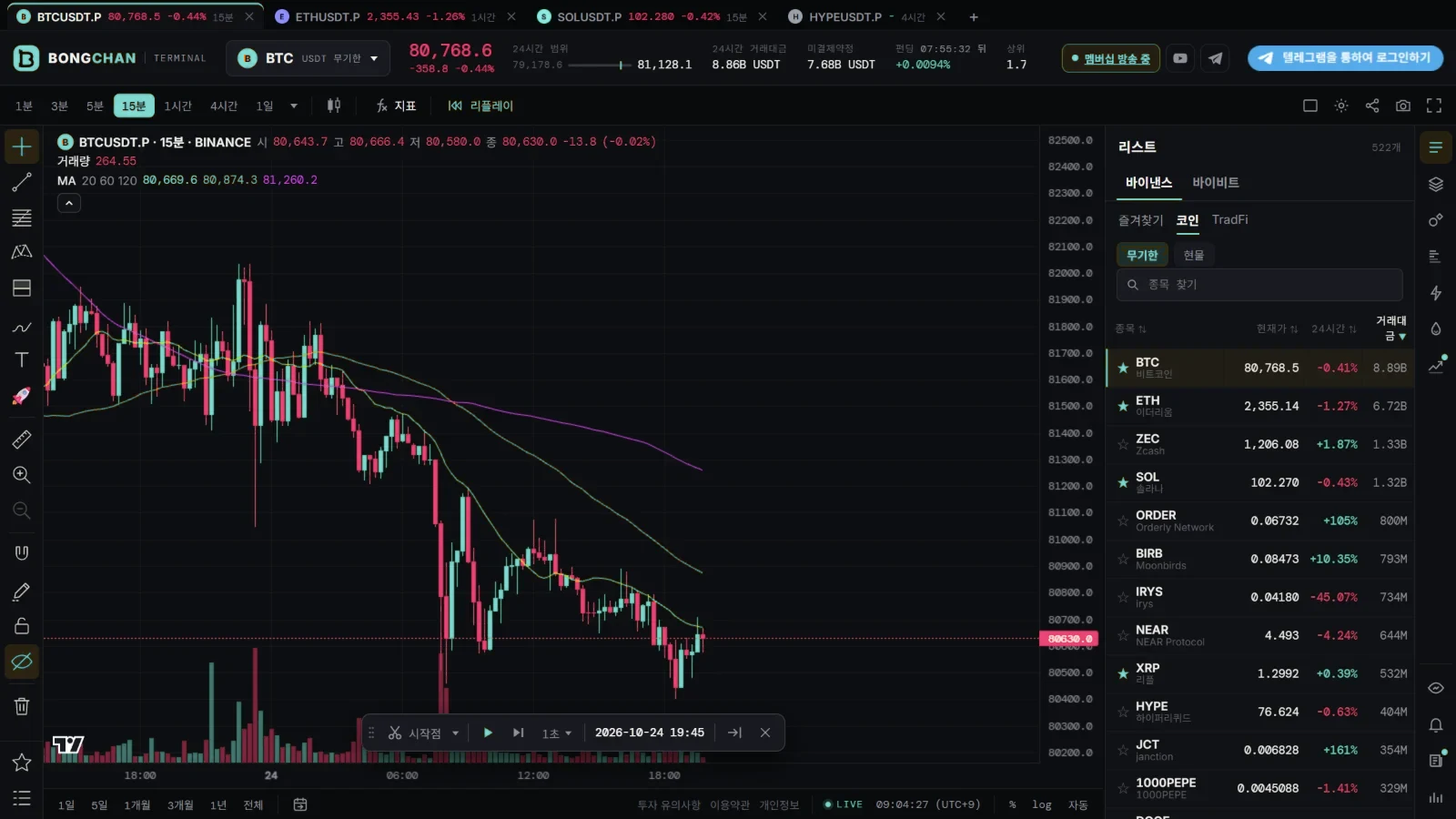
Replay · go to date리플레이 · 날짜로 이동

Click 리플레이 (Replay) at the top and pick a starting point. The bars after it are hidden and you can play them back one at a time — good for trading practice.위쪽 리플레이를 누르고 시작할 곳을 고르면, 그 뒤 봉을 가린 채 한 봉씩 다시 볼 수 있습니다. 매매 연습할 때 좋습니다.

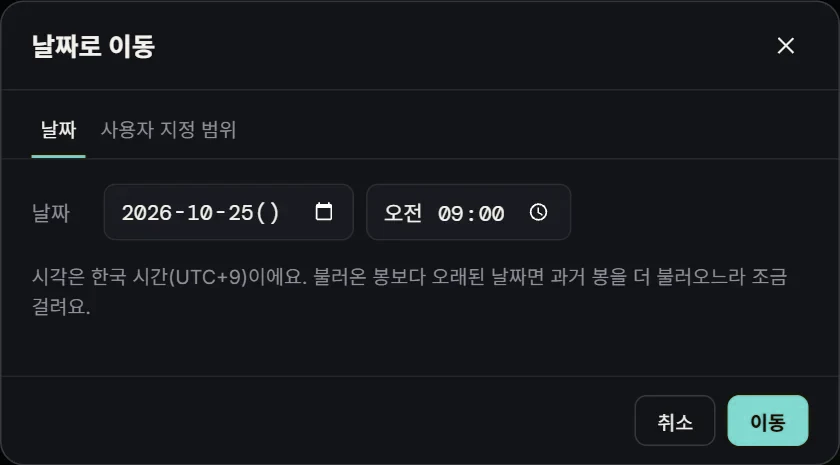
The calendar button at the bottom jumps straight to any date and time.아래 달력 단추로 원하는 날짜·시각으로 바로 갈 수도 있습니다.

Bar replay with the playback controls
Bar replay바 리플레이
The go to date window
Go to date날짜로 이동

Bong Scout · Bong RadarBong 스카우트 · Bong 레이더

Bong 스카우트 (Bong Scout, the binoculars next to Replay) finds things on the chart as each bar closes: candle patterns, breaks of a high or low, liquidity sweeps, RSI divergence, volume spikes, crossing the 200 moving average and volatility squeezes. It also marks big order book walls (Binance, Bybit and OKX combined) and prices where Hyperliquid liquidations cluster as short bars to the right of the last candle; hover one to see the size, how long it has been there and the distance from the price, and you get a caption and sound when the price comes close. In its window these are grouped into four: 캔들 패턴, 돌파·스윕, 힘의 변화 and 호가 벽·청산.리플레이 옆 쌍안경 단추 Bong 스카우트는 봉이 끝날 때마다 차트에서 캔들 패턴·고점/저점 돌파·유동성 스윕·RSI 다이버전스·거래량 폭발·200 평균선 넘김·변동성 압축을 찾아 줍니다. 큰 호가 벽(바이낸스·바이비트·OKX 합산)과 하이퍼리퀴드 청산이 몰린 가격도 마지막 봉 오른쪽에 짧은 막대로 보여 주고, 올리면 금액·몇 분째 그대로인지·지금가와의 거리가 나오며, 가격이 가까이 오면 자막과 소리로 알려 줍니다. 창에서는 캔들 패턴·돌파·스윕·힘의 변화·호가 벽·청산 네 묶음으로 켜고 끕니다.

To keep the chart clean, the default is 마우스 올릴 때 (on hover): small dots appear only while your mouse is over the chart, and moving onto one opens its box, label and a one-line explanation. Press and hold on the chart to see them all at once, or pick 항상 (always). On a phone, tap a dot. When something new is found, a caption appears on the chart with a short sound — a different sound for each kind. The sound row goes from off, to new finds only, to also a click when a bar closes, to also a 3·2·1 countdown. The Bong Sweep, Absorption, Levels and Spring indicators are drawn the same way: small dots or faint lines, opening up when you hover.차트가 지저분하지 않게 기본은 마우스 올릴 때입니다. 마우스가 차트 위에 있을 때만 작은 점이 보이고, 점에 올리면 상자·이름표·한 줄 설명이 펼쳐집니다. 차트를 꾹 누르고 있으면 모두 한 번에 보이고, 항상을 고르면 늘 보입니다. 휴대폰은 점을 누릅니다. 새로 찾으면 차트 위에 자막이 뜨고 종류마다 다른 짧은 소리가 납니다. 소리는 끄기 → 잡힐 때 → 봉 마감 딸깍까지 → 마감 3·2·1까지 중에서 고릅니다. 지표 Bong Sweep·Absorption·Levels·Spring도 같은 방식으로, 평소엔 작은 점·흐린 선만 있다가 마우스를 올리면 펼쳐집니다.

These are things that are easy to see in hindsight, not buy or sell signals.지나고 보면 눈에 띄는 것들을 짚어 주는 것이지, 사고팔라는 신호가 아닙니다.

Bong 레이더 (Bong Radar) right next to it filters the top coins by market cap with indicator conditions on the 1-hour chart.바로 옆 Bong 레이더는 시총 상위 코인을 1시간봉 지표 조건으로 걸러 보여 줍니다.

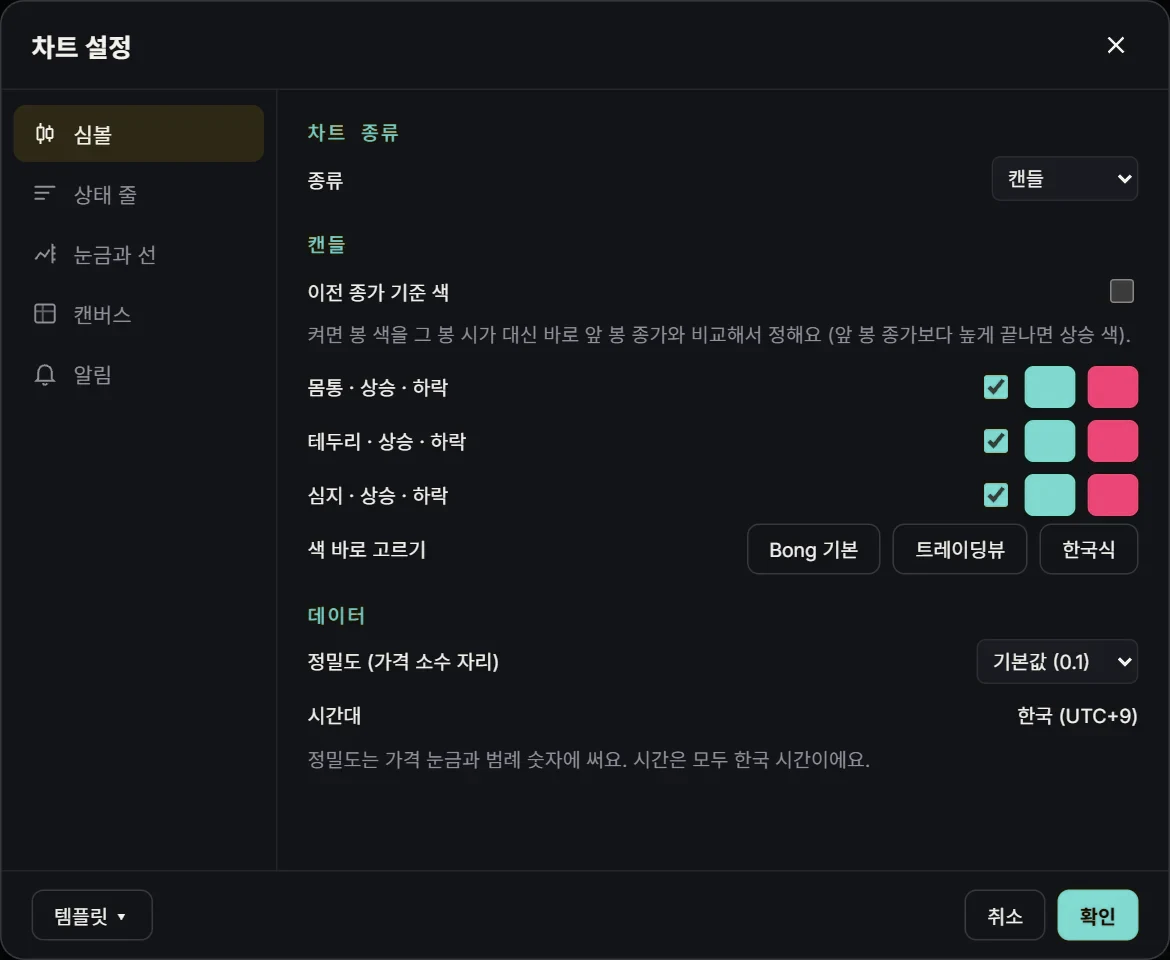
Chart settings차트 설정

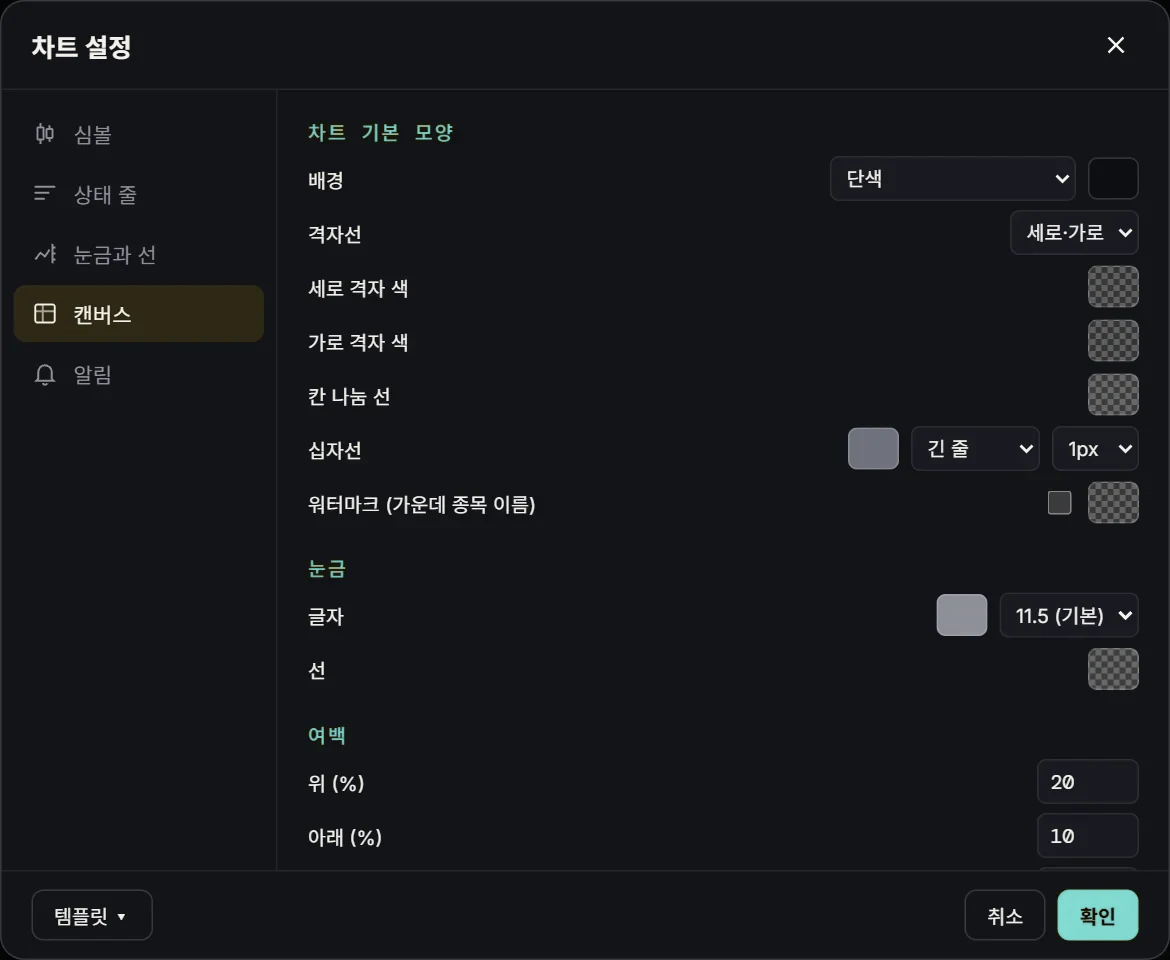
The gear at the top opens chart settings. As in TradingView, change the candle colors (Bong default, TradingView or Korean style), background, grid, status line and more, and save it all as a template.위쪽 톱니바퀴를 누르면 차트 설정 창이 열립니다. 캔들 색(Bong 기본·트레이딩뷰·한국식), 배경·눈금, 상태 표시줄 등을 트레이딩뷰처럼 바꿀 수 있고, 템플릿으로 저장해 둘 수 있습니다.

Chart settings, symbol tab
Candle colors캔들 색
Chart settings, canvas tab
Background and grid배경·눈금

Menus · shortcuts메뉴 · 단축키

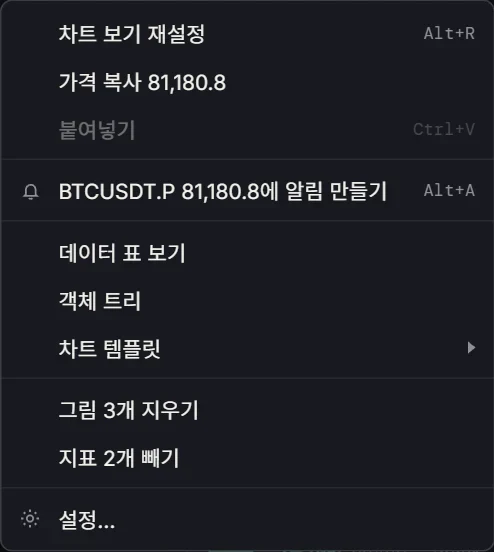
Right-click the chart, the price scale or the time scale for more options. The shortcuts are the same as TradingView.차트·가격 눈금·시간 눈금에서 오른쪽 단추를 누르면 메뉴가 나옵니다. 단축키는 트레이딩뷰와 같습니다.

Alt + R
Reset the chart view차트 보기 재설정
Alt + A
Add a price alert at the cursor마우스 자리 가격에 알림 만들기
Alt + L
Log scale로그 눈금
Alt + P
Percent scale퍼센트 눈금
Alt + I
Invert the scale눈금 뒤집기
Alt + click클릭
In split view, enlarge one chart (again to go back)분할 보기에서 한 칸 크게 보기 (한 번 더 하면 되돌림)
The chart right-click menu
Right-click menu오른쪽 단추 메뉴
03

Market data시장 자료

What the market is doing시장 흐름 보기

List, liquidation map, order book heatmap, order book, trades and liquidations, news and the market panel. All free without logging in.리스트, 청산 지도, 호가 히트맵, 호가, 체결·청산, 뉴스, 시장 창입니다. 모두 로그인 없이 무료입니다.

List리스트

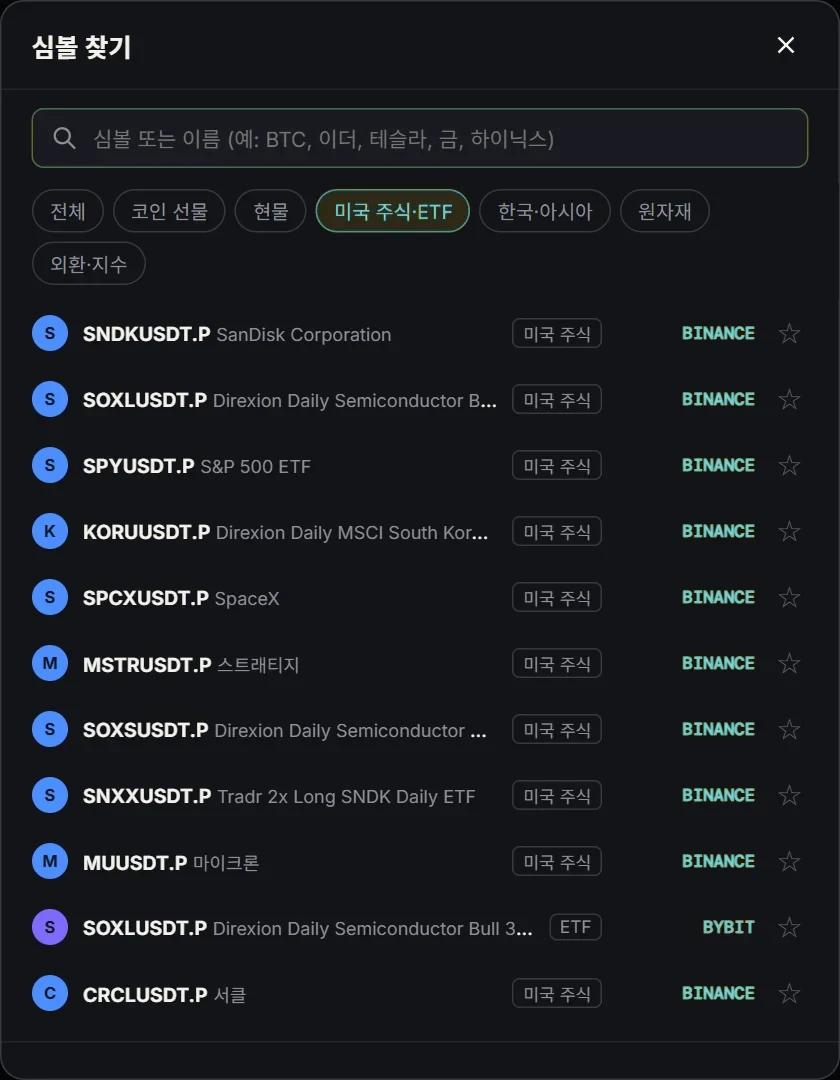
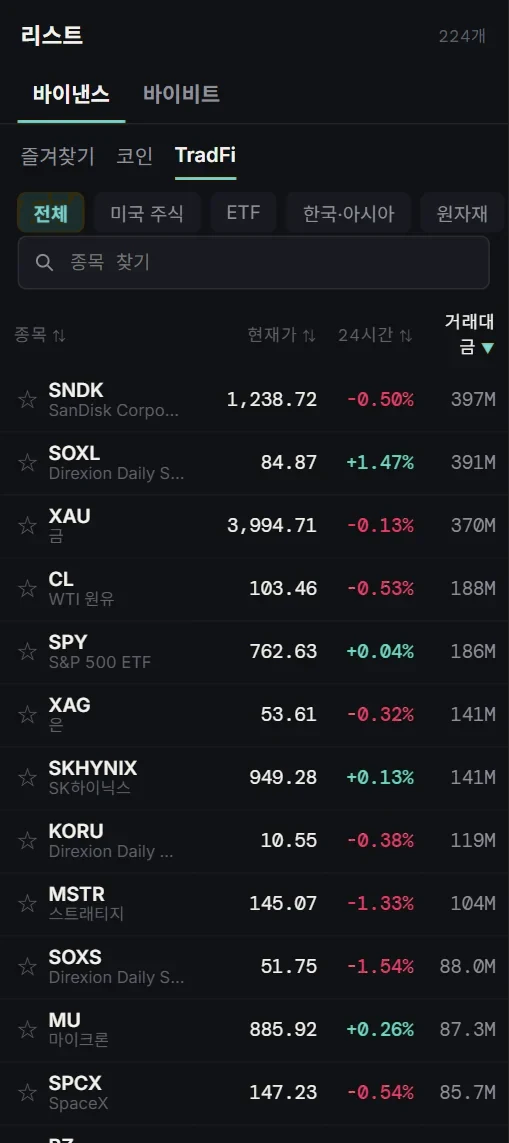
The first panel on the right is a list like an exchange’s. It covers about 2,500 Binance and Bybit symbols: coin perpetuals and spot, plus US stocks, ETFs and commodities under TradFi.오른쪽 첫 번째 창은 거래소 화면 같은 리스트입니다. 바이낸스·바이비트 약 2,500개 종목(코인 무기한·현물, TradFi의 미국 주식·ETF·원자재)을 볼 수 있습니다.

Click a column header to sort by price, change or volume. Click the star on a row to add it to your favorites. Click a row to open that chart.머리글을 누르면 가격·등락률·거래대금 순으로 정렬되고, 줄마다 별을 누르면 즐겨찾기에 들어갑니다. 줄을 누르면 그 차트가 열립니다.

The list panel showing TradFi symbols

Liquidation map · order book heatmap청산 지도 · 호가 히트맵

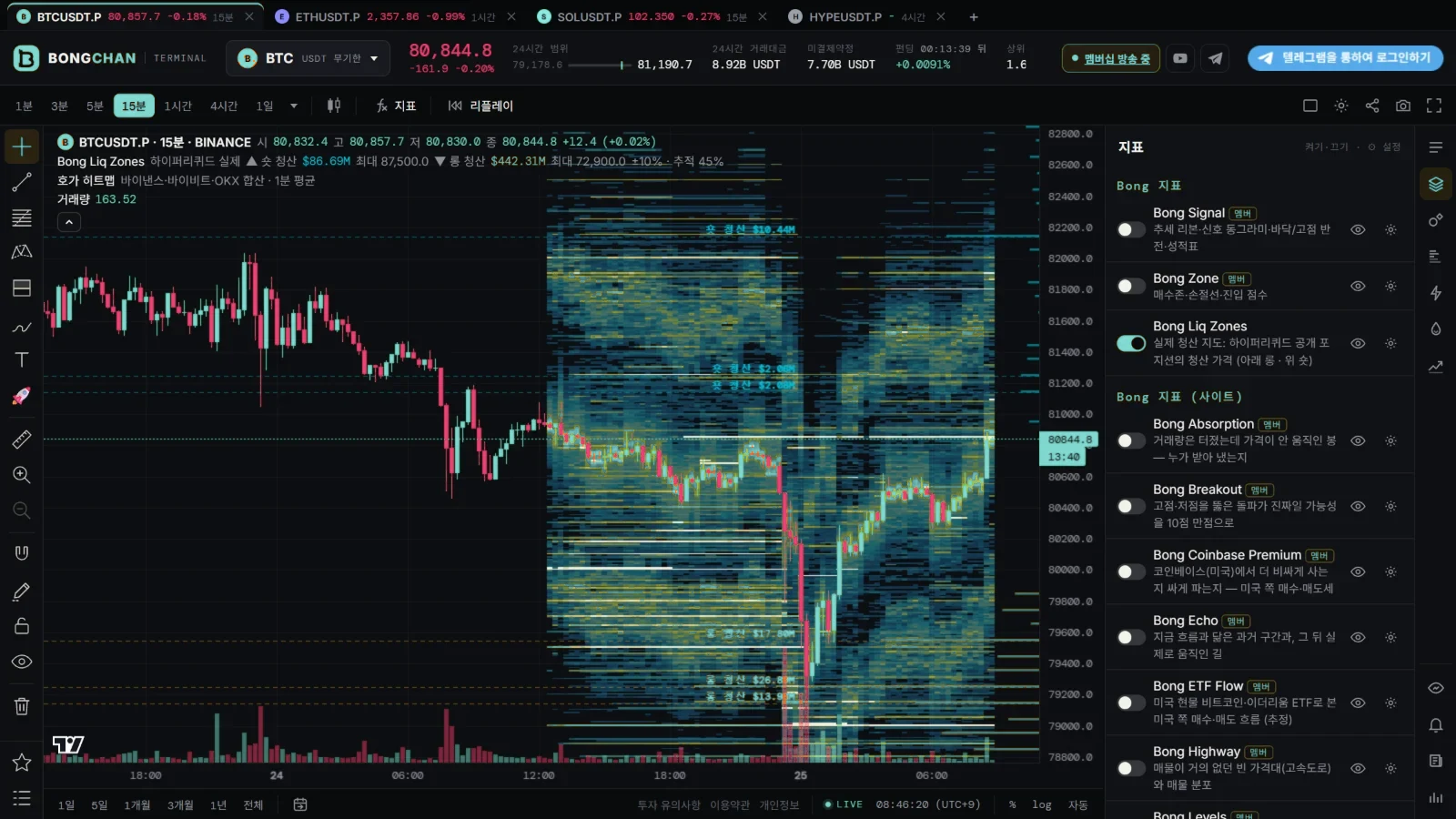
In the indicator panel, switch on Bong Liq Zones and 호가 히트맵 (order book heatmap) and they appear on the chart. Anyone can see them without logging in.지표 창에서 Bong Liq Zones와 호가 히트맵을 켜면 차트 위에 나옵니다. 로그인 없이 누구나 볼 수 있습니다.

  • Liquidation map — not an estimate. It is drawn from the liquidation prices of real positions published on Hyperliquid.청산 지도 — 추정이 아니라, 하이퍼리퀴드에 공개된 실제 포지션의 청산 가격을 모아 그린 것입니다.
  • Order book heatmap — shows how the buy and sell walls in exchange order books changed over time.호가 히트맵 — 거래소 호가에 쌓인 매수벽·매도벽이 시간에 따라 어떻게 바뀌었는지 보여 줍니다.
The order book heatmap and the Hyperliquid liquidation map on a BTC chart
Order book heatmap and liquidation map on the chart차트 위 호가 히트맵과 청산 지도

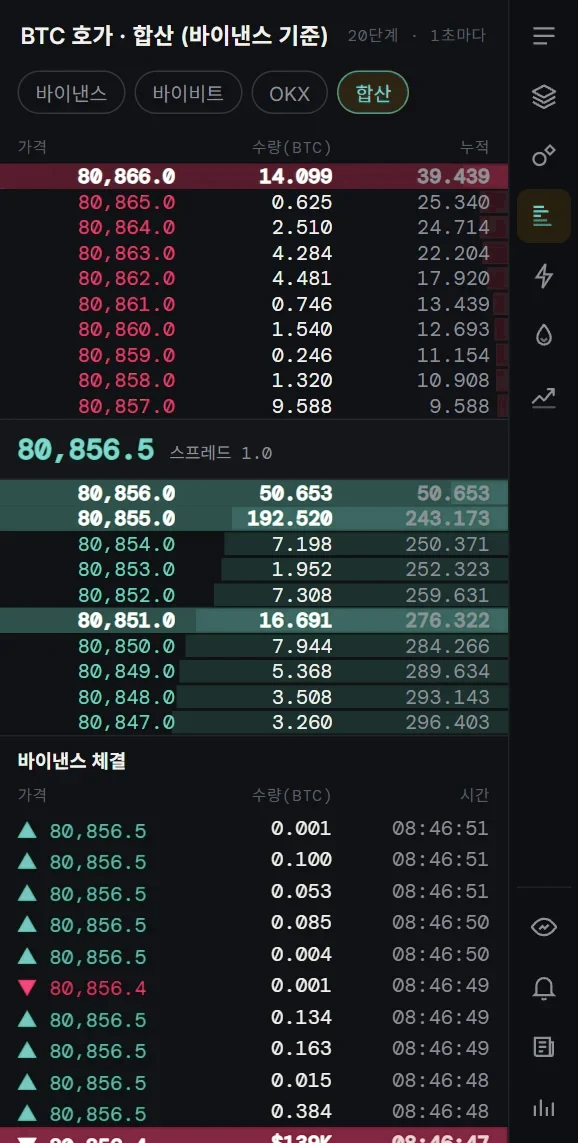
Order book호가

See the Binance, Bybit and OKX order books one at a time, or all three combined into one.호가 창에서 바이낸스·바이비트·OKX 호가를 거래소별로 따로 보거나, 셋을 합쳐서 볼 수 있습니다.

The order book panel

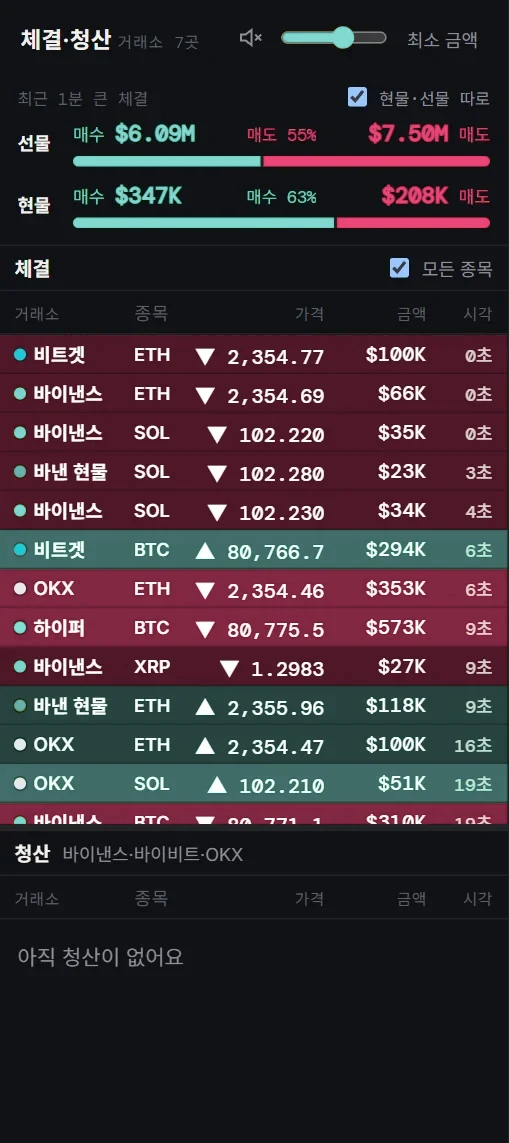
Trades · liquidations체결 · 청산

Large trades and liquidations from seven exchanges in one panel. View spot and futures separately or together; a bar shows whether buyers or sellers dominated the last minute.7개 거래소의 대규모 체결과 청산을 한 창에서 봅니다. 현물·선물을 따로 또는 같이 볼 수 있고, 최근 1분 동안 매수·매도 어느 쪽이 많은지 막대로 보여 줍니다.

Set a minimum size to filter out small trades. When a very large trade comes in, you get a sound and a moving picture.최소 금액을 정해 작은 체결은 거를 수 있고, 아주 큰 체결이 들어오면 소리와 움직이는 그림으로 알려 줍니다.

The trades and liquidations panel

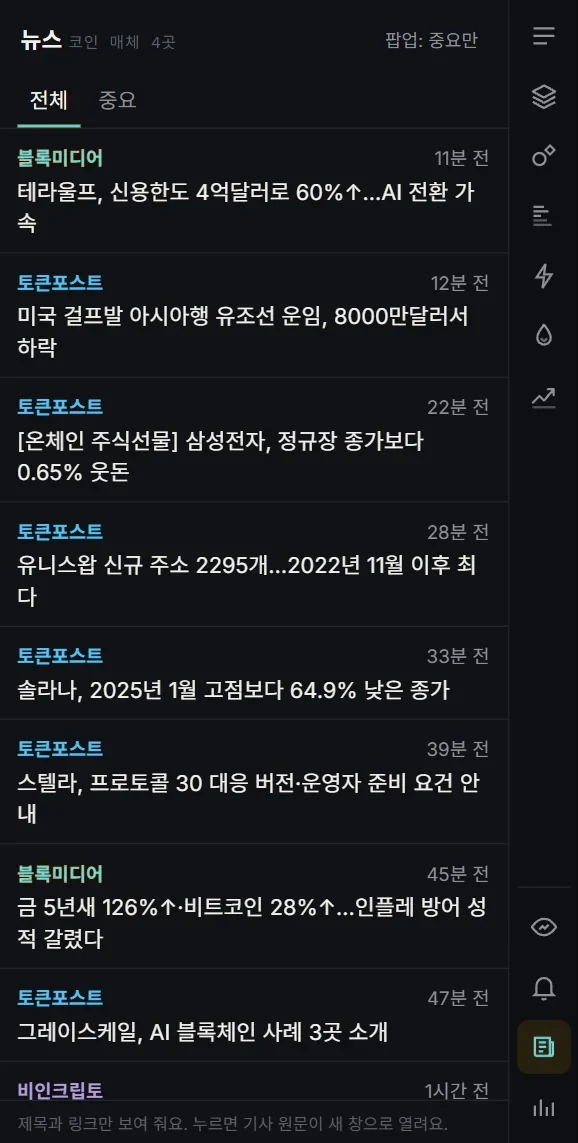
News뉴스

Korean crypto news headlines arrive in real time. Click a headline to open the article in a new window.한국어 코인 뉴스가 실시간으로 올라옵니다. 제목을 누르면 기사 원문이 새 창으로 열립니다.

With 팝업 (pop-up) at the top, choose important news only, all news, or off — new headlines then pop up on screen.위쪽 팝업에서 중요한 뉴스만·모든 뉴스·끄기를 고르면, 새 뉴스가 화면에 팝업으로 뜹니다.

The news panel

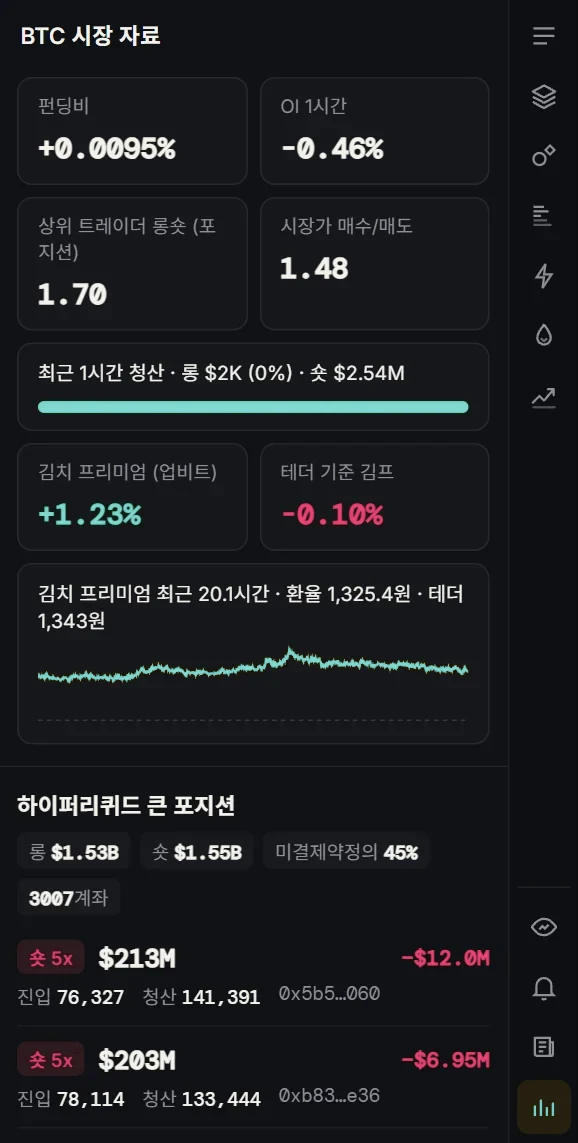
Market시장

Funding rate, open interest, long/short ratio, recent liquidations and the kimchi premium (the price gap on Korean exchanges) at a glance.시장 창에서 펀딩비·OI(미결제약정)·롱숏 비율·최근 청산·김치 프리미엄을 한눈에 봅니다.

Below them are the large Hyperliquid positions (whales). Click an address to see that wallet’s positions live.아래에는 하이퍼리퀴드 큰 포지션(고래)이 나옵니다. 주소를 누르면 그 지갑의 포지션을 실시간으로 볼 수 있습니다.

The market panel

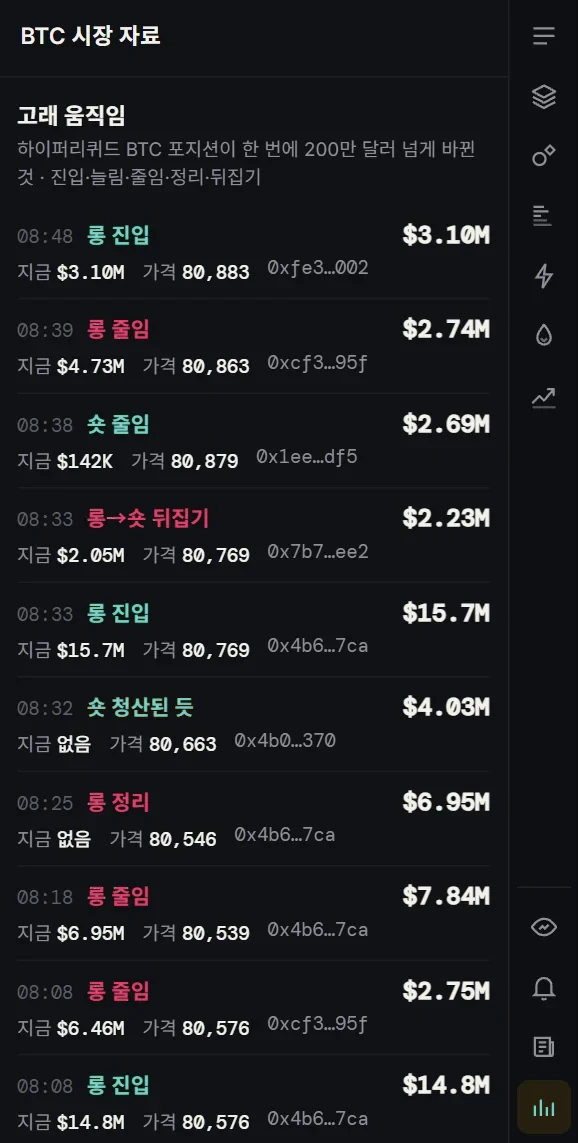
Whale moves고래 움직임

When a Hyperliquid whale makes a big change to a position, it shows up right away — split into open, add, reduce, close and flip. Cases that look like a liquidation are marked too.하이퍼리퀴드 고래가 한 번에 크게 포지션을 바꾸면 바로 올라옵니다. 진입·늘림·줄임·정리·뒤집기를 나눠서 보여 주고, 청산된 것으로 보이는 경우도 표시합니다.

The whale moves list
04

Alerts알림

Never miss a move놓치지 않게 알림 받기

Liquidation and pump pop-ups and price alerts for everyone; signal alerts on screen and on Telegram for members.청산·급등락 팝업과 가격 알림은 누구나, 신호 알림(화면·텔레그램)은 멤버가 씁니다.

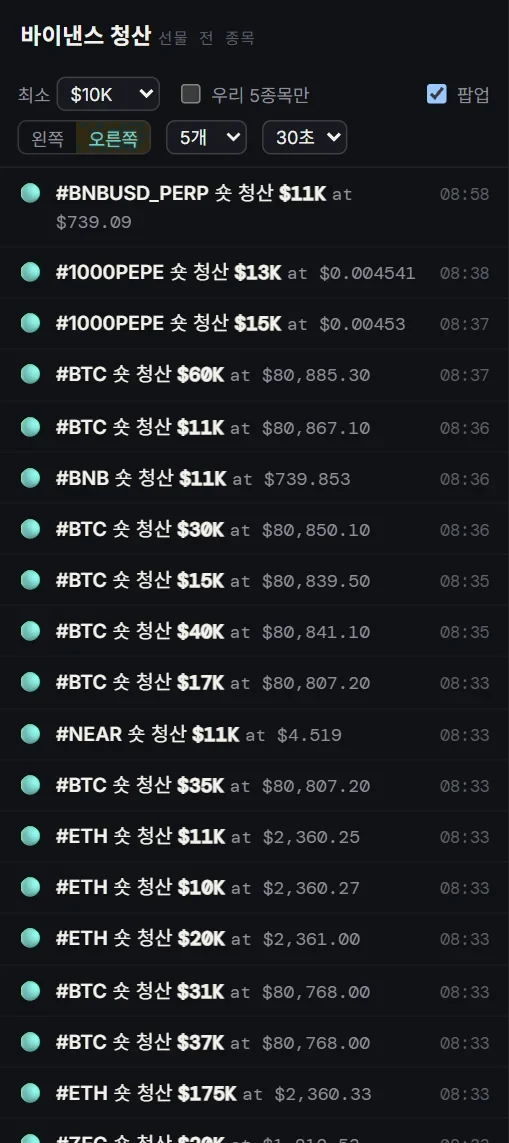
Binance liquidation alerts바이낸스 청산 알림

Shows liquidations on every Binance futures symbol in real time.바이낸스 선물 전 종목의 청산을 실시간으로 보여 줍니다.

Choose a minimum size and show the pop-ups at the bottom left or bottom right of the screen. You can also set how many show at once and for how many seconds.최소 금액을 고르고, 팝업을 화면 왼쪽 아래 또는 오른쪽 아래에 띄울 수 있습니다. 한 번에 몇 개까지, 몇 초 동안 보일지도 정할 수 있습니다.

The liquidation alert panel

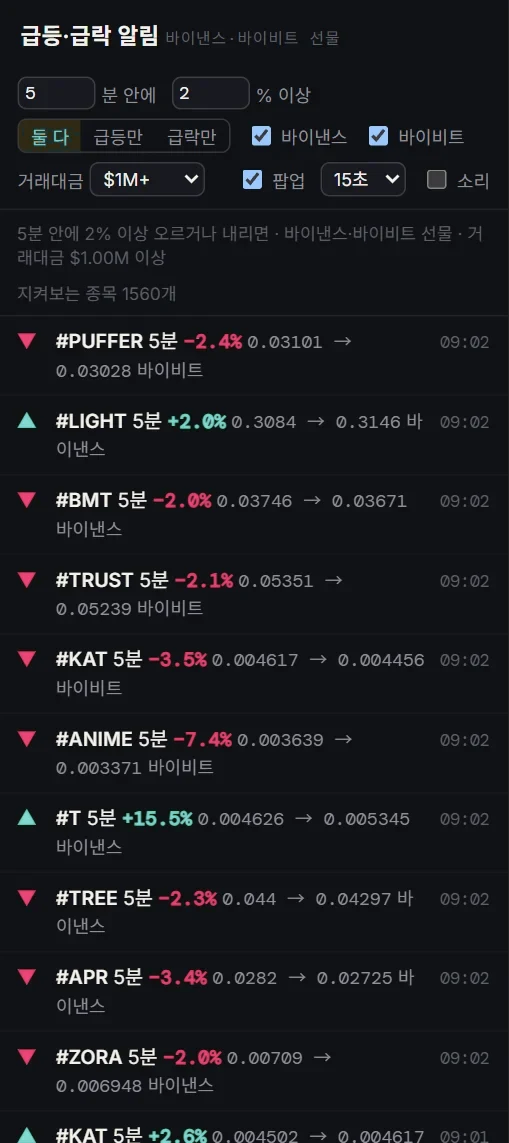
Pump · dump alerts급등락 알림

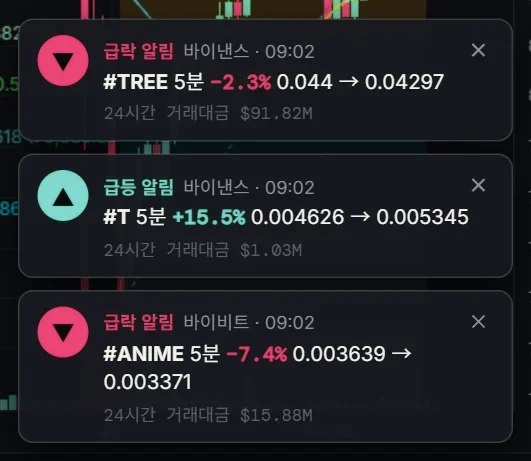
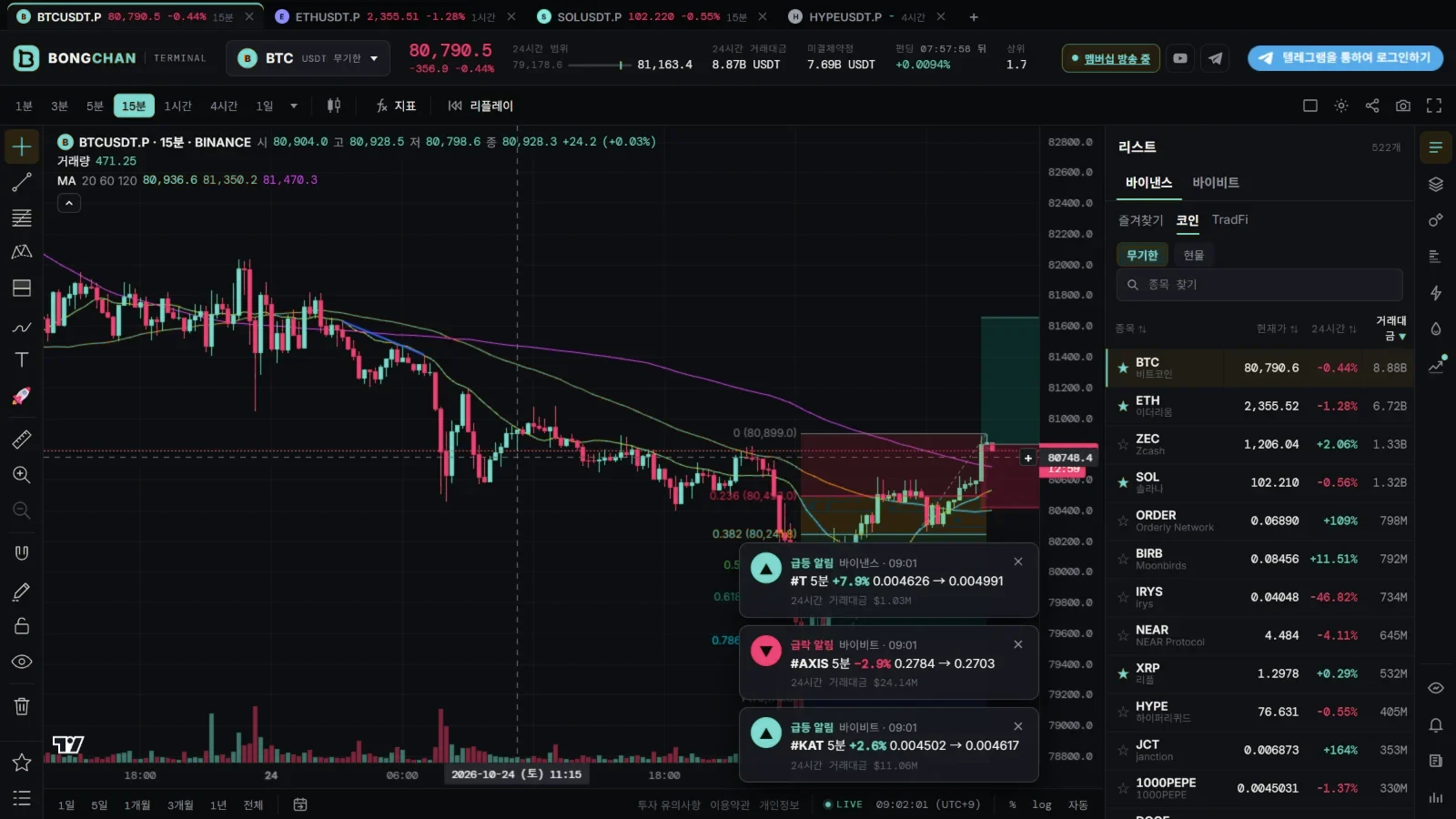
Coins that rise or fall sharply in a short time pop up at the bottom of the screen, like Telegram messages. It watches every Binance and Bybit futures symbol and works without logging in.짧은 시간에 크게 오르거나 내린 코인을 텔레그램 메시지처럼 화면 아래에 팝업으로 띄워 줍니다. 바이낸스·바이비트 선물 전 종목을 지켜보고, 로그인 없이 쓸 수 있습니다.

Set your own rule — “more than X % within Y minutes” — and choose pumps only or dumps only, the exchange and a minimum volume.'몇 분 안에 몇 % 이상'을 직접 정하고, 급등만·급락만, 거래소, 거래대금 기준도 고를 수 있습니다.

The pump and dump alert settings
Alert rules알림 기준
Pump alert pop-ups
Pop-ups팝업
Pump alert pop-ups at the bottom of the terminal
Pop-ups appear at the bottom of the screen화면 아래에 팝업이 뜹니다

Price alerts가격 알림

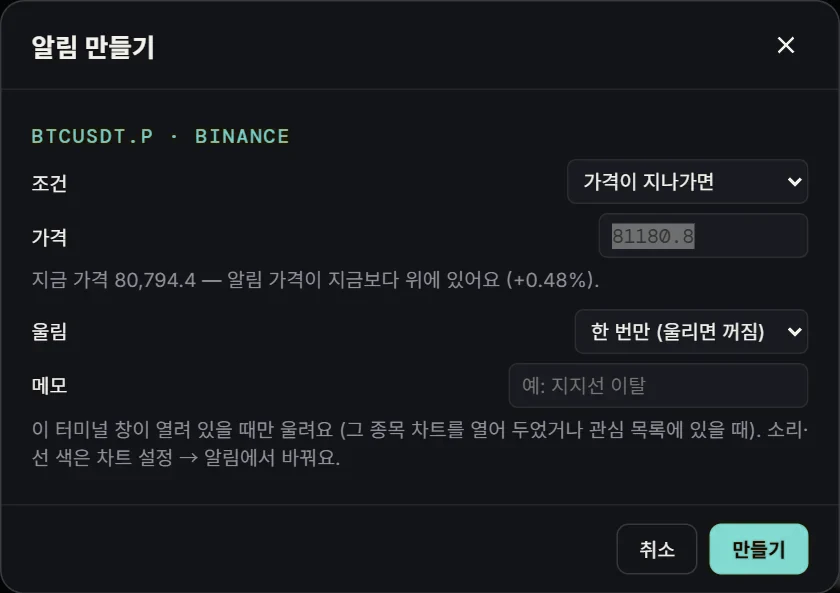
Right-click the chart → 알림 만들기 (Create alert), press Alt + A, or click + next to the price scale. When the price crosses the line, you get a sound and a pop-up. Drag the alert’s tag to move its price.차트에서 오른쪽 단추 → 알림 만들기, Alt + A, 또는 가격 눈금 옆 + 단추로 가격 알림을 만듭니다. 가격이 지나가면 소리와 팝업으로 알려 줍니다. 알림 선의 꼬리표를 끌면 가격이 옮겨집니다.

Price alerts are kept in your browser and ring only while the terminal is open. They are not sent to Telegram.가격 알림은 브라우저에 저장되고, 터미널 창이 열려 있을 때만 울립니다. 텔레그램으로는 오지 않습니다.

The price alert window
Creating a price alert가격 알림 만들기

Signals신호Members멤버 전용

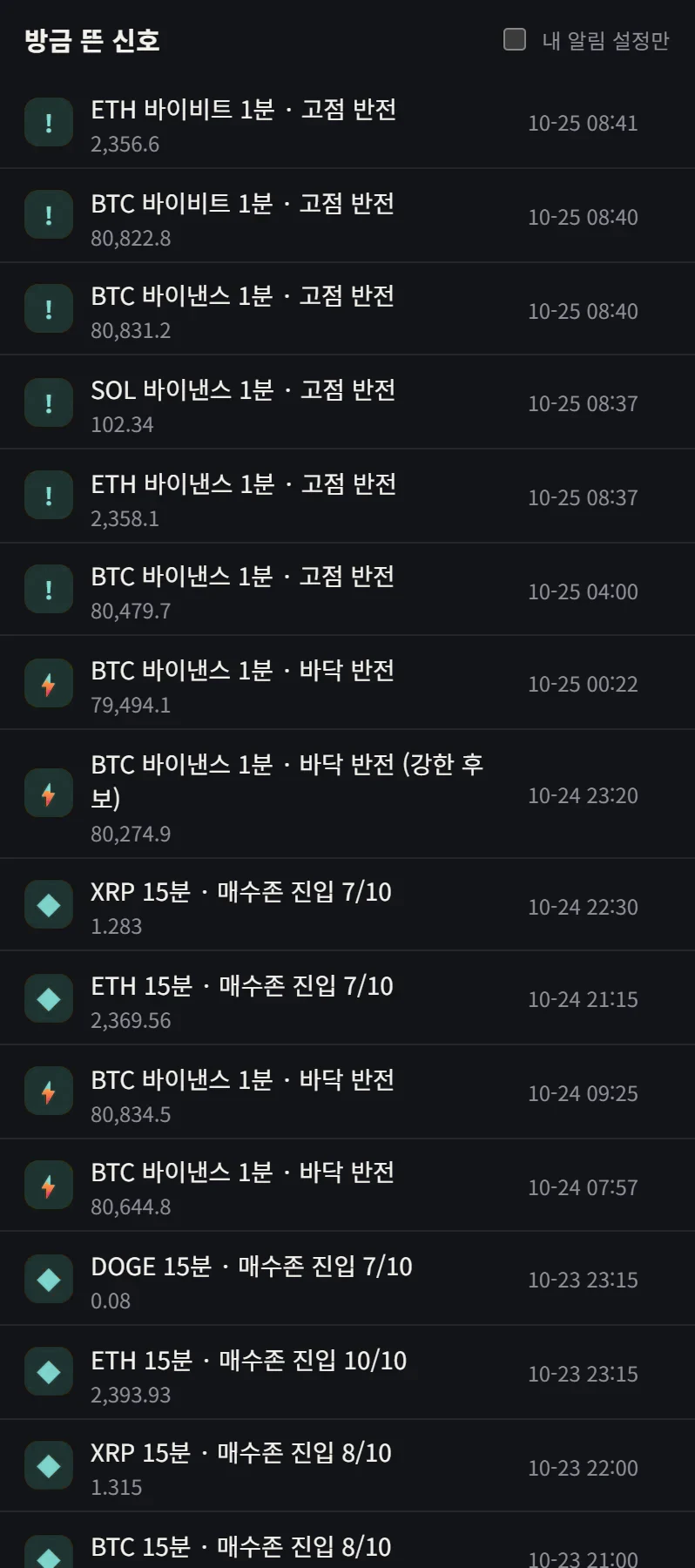
Bolt (bottom reversal) and top reversal signals, and Bong Zone buy-zone entries, collected in one list.번개(바닥 반전)·고점 반전 신호와 Bong Zone 매수존 진입을 모아서 보여 줍니다.

Switch on 내 알림 설정만 (my alert settings only) to keep just the coins and signals you chose in the alert panel. Click a signal to jump to that symbol and time on the chart.내 알림 설정만을 켜면 알림 창에서 고른 코인·신호만 남습니다. 신호를 누르면 그 종목·그 시각 차트로 바로 이동합니다.

The members' signal list

Alert settings알림 설정Members멤버 전용

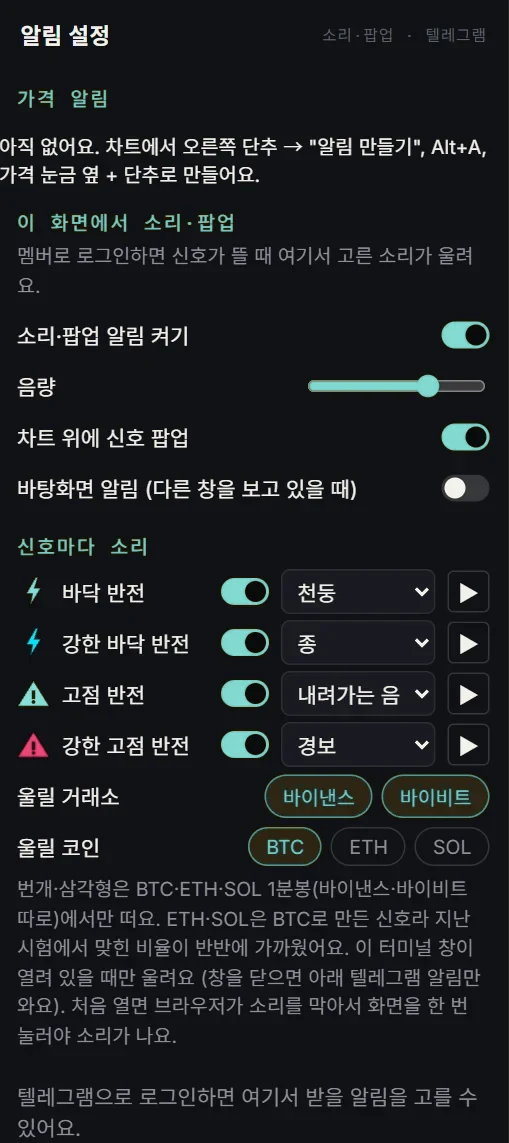
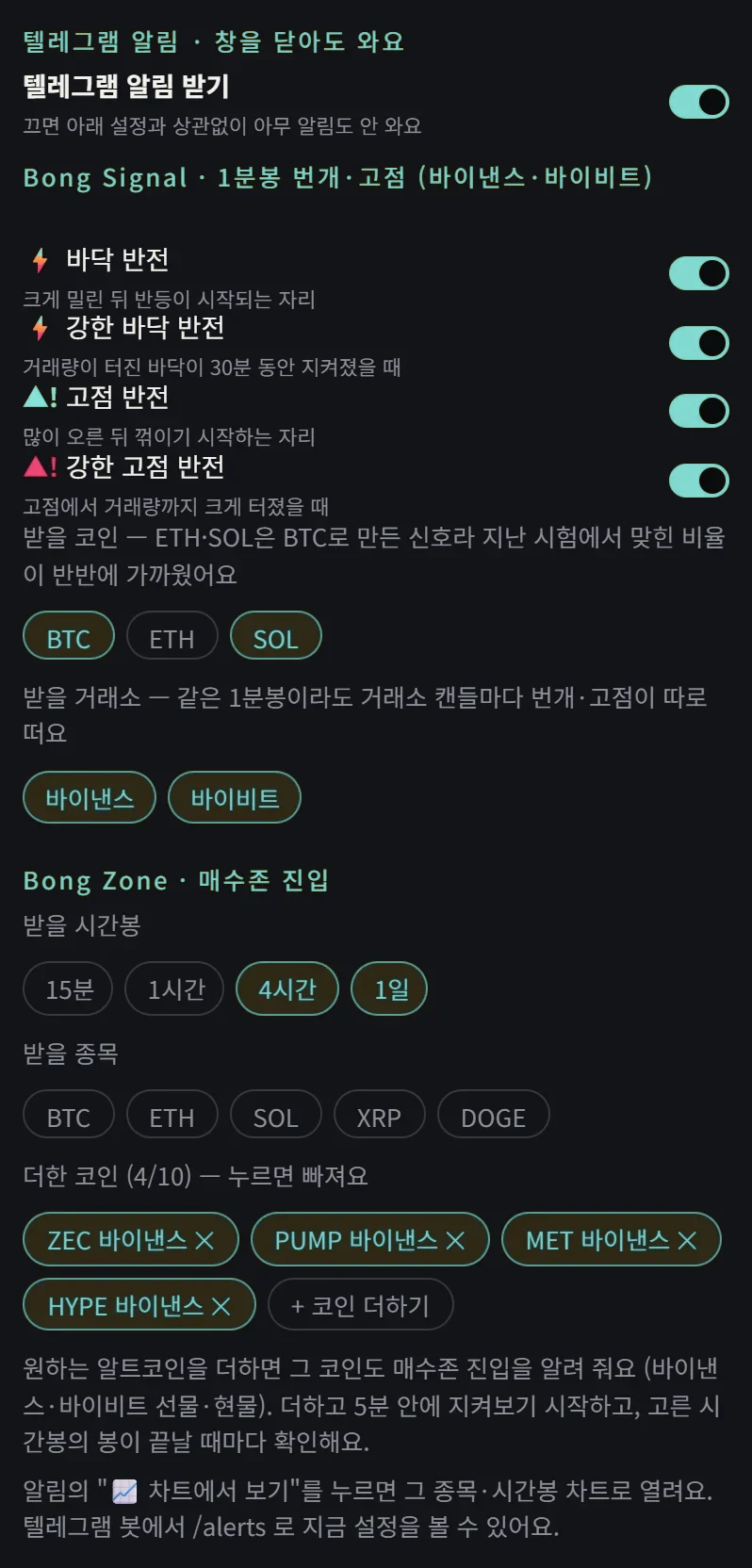
In the alert panel, pick a sound for each signal and choose which exchange (Binance, Bybit) and coin (BTC, ETH, SOL) it rings for.알림 창에서 신호마다 소리를 고르고, 울릴 거래소(바이낸스·바이비트)와 코인(BTC·ETH·SOL)을 정합니다.

With 봉이 끝나기 전에 미리 울리기 (ring before the candle closes) on, a signal rings the moment its conditions are met and the pop-up says ⚡ Early Signal (temporary, before the close). When the candle closes, the same pop-up turns into ✓ Confirmed, or ✕ Cancelled if the conditions no longer hold. Telegram alerts are always Confirmed.봉이 끝나기 전에 미리 울리기를 켜면 조건이 맞는 순간 바로 울리고 팝업에 ⚡ Early Signal(봉 마감 전 임시 신호)로 보입니다. 봉이 끝나면 같은 팝업이 ✓ Confirmed(봉 마감 확인)로 바뀌고, 조건이 풀리면 ✕ Cancelled(사라짐)로 바뀝니다. 텔레그램 알림은 늘 Confirmed만 옵니다.

Logged-in members also choose their Telegram alerts here: switch each signal on or off and pick the coins and exchanges. For Bong Zone buy-zone alerts, choose the timeframes (15m, 1h, 4h, 1D) and symbols, and add up to 10 altcoins of your own.멤버로 로그인하면 텔레그램으로 받을 알림도 여기서 고릅니다. 신호마다 켜고 끄고, 받을 코인·거래소를 정합니다. Bong Zone 매수존 알림은 받을 시간봉(15분·1시간·4시간·1일)과 종목을 고르고, 원하는 알트코인을 10개까지 더할 수 있습니다.

On-screen sounds and pop-ups ring only while the terminal is open; Telegram alerts arrive even when it is closed. Tap 차트에서 보기 (view on chart) in a Telegram alert to open that chart.화면 소리·팝업은 터미널 창이 열려 있을 때만 울리고, 텔레그램 알림은 창을 닫아도 옵니다. 텔레그램 알림의 차트에서 보기를 누르면 그 차트가 바로 열립니다.

On-screen alert settings
On-screen sounds and pop-ups화면 소리·팝업
Telegram alert settings for members
Telegram alerts텔레그램 알림
05

Free and members무료와 멤버

What is free, what is for members무료로 쓰는 것, 멤버가 쓰는 것

Market data is free for everyone. Only the indicators we make ourselves are for members.거래소 시장 자료는 모두 무료이고, 직접 만든 지표만 멤버 전용입니다.

Free — no login무료 — 로그인 없이

  • Charts for about 2,500 Binance and Bybit symbols바이낸스·바이비트 약 2,500개 종목 차트
  • Split view up to 16 charts, drawing, replay, chart settings, share links최대 16칸 분할 보기, 작도, 리플레이, 차트 설정, 공유 링크
  • List, order book, trades and liquidations, news리스트, 호가, 체결·청산, 뉴스
  • Hyperliquid liquidation map, order book heatmap하이퍼리퀴드 청산 지도, 호가 히트맵
  • Market panel, whale moves, kimchi premium시장 창, 고래 움직임, 김치 프리미엄
  • Liquidation, pump · dump and price alerts청산·급등락·가격 알림

Members멤버

  • Bong Signal, Bong Zone and the other Bong indicators on the chart차트 위 Bong Signal·Bong Zone과 다른 Bong 지표
  • The signal list신호 목록
  • Bong Thesis — evidence from six indicators in one panel; tap an item for its numbers, charts and data sources (OI flow and spot vs perp can also be shown in a pane below the chart)Bong Thesis — 지표 6개의 근거를 한 창에, 근거를 누르면 수치·그래프·자료 출처 (OI 흐름·현물 vs 선물은 차트 아래 칸에도 표시)
  • Signal alerts on Telegram, with your own coins텔레그램 신호 알림 (원하는 코인 추가)
  • Bong View — notes from the operator (leave a reaction under each post; new posts also arrive on Telegram)Bong 관점 — 운영자 글 (글마다 반응 남기기, 새 글은 텔레그램으로도 옴)
  • Saving your chart setup to your account차트 설정을 계정에 저장

Becoming a member멤버가 되는 법

  1. Join the YouTube channel membership (tier 2 or higher) and find this month’s code in the members-only post.유튜브 채널 멤버십(2단계 이상)에 가입하고, 멤버 전용 게시물에서 이번 달 인증 코드를 확인합니다.
  2. Send /code followed by the code to @bongfunbot on Telegram.텔레그램 @bongfunbot에 /code 코드를 보냅니다.
  3. Log in to the terminal with Telegram. Each code opens 30 days; send next month’s code to keep going.터미널에서 텔레그램으로 로그인합니다. 코드 하나로 30일이 열리고, 다음 달 코드를 보내면 이어서 씁니다.

Questions or feature ideas? Send /feedback to @bongfunbot.불편한 점이나 원하는 기능은 봇 @bongfunbot에 /feedback으로 보내 주세요.

→

Bongchan terminal봉찬 터미널

Open it and look around.지금 바로 열어 보세요.

Charts, order books, trades, liquidations and news are free without logging in. Bong indicators and signal alerts open with a monthly member code.차트·호가·체결·청산·뉴스는 로그인 없이 무료입니다. Bong 지표와 신호 알림은 매달 멤버 코드로 열립니다.